> ## Documentation Index
> Fetch the complete documentation index at: https://langchain-5e9cc07a-preview-devupd-1765394015-eccef47.mintlify.site/llms.txt
> Use this file to discover all available pages before exploring further.
# Configure webhook notifications for LangSmith alerts
## Overview
This guide details the process for setting up webhook notifications for [LangSmith alerts](/langsmith/alerts). Before proceeding, make sure you have followed the steps leading up to the notification step of creating the alert by following [this guide](./alerts). Webhooks enable integration with custom services and third-party platforms by sending HTTP POST requests when alert conditions are triggered. Use webhooks to forward alert data to ticketing systems, chat applications, or custom monitoring solutions.
## Prerequisites
* An endpoint that can receive HTTP POST requests
* Appropriate authentication credentials for your receiving service (if required)
## Integration Configuration
### Step 1: Prepare Your Receiving Endpoint
Before configuring the webhook in LangSmith, ensure your receiving endpoint:
* Accepts HTTP POST requests
* Can process JSON payloads
* Is accessible from external services
* Has appropriate authentication mechanisms (if required)
Additionally, if on a custom deployment of LangSmith, make sure there are no firewall settings blocking egress traffic from LangSmith services.
### Step 2: Configure Webhook Parameters
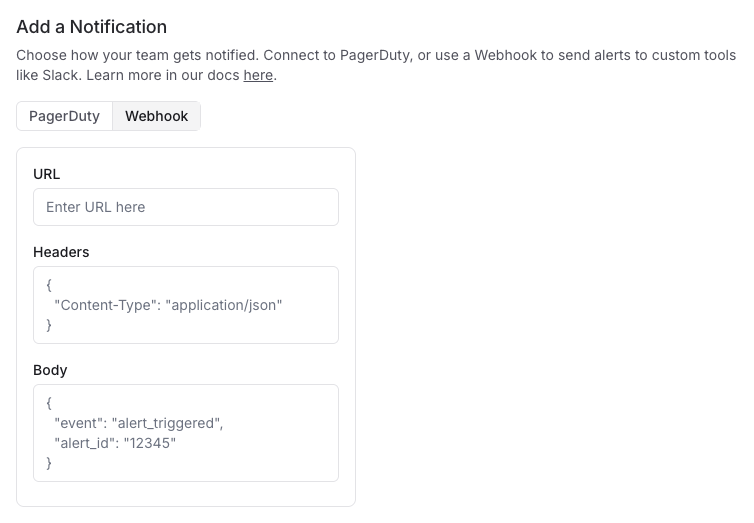 In the notification section of your alert complete the webhook configuration with the following parameters:
**Required Fields**
* **URL**: The complete URL of your receiving endpoint
* Example: `https://api.example.com/incident-webhook`
**Optional Fields**
* **Headers**: JSON Key-value pairs sent with the webhook request
* Common headers include:
* `Authorization`: For authentication tokens
* `Content-Type`: Usually set to `application/json` (default)
* `X-Source`: To identify the source as LangSmith
* If no headers, then simply use `{}`
* **Request Body Template**: Customize the JSON payload sent to your endpoint
* Default: LangSmith sends the payload defined and the following additonal key-value pairs appended to the payload:
* `project_name`: Name of the triggered alert
* `alert_rule_id`: A UUID to identify the LangSmith alert. This can be used as a de-duplication key in the webhook service.
* `alert_rule_name`: The name of the alert rule.
* `alert_rule_type`: The type of alert (as of 04/01/2025 all alerts are of type `threshold`).
* `alert_rule_attribute`: The attribute associated with the alert rule - `error_count`, `feedback_score` or `latency`.
* `triggered_metric_value`: The value of the metric at the time the threshold was triggered.
* `triggered_threshold`: The threshold that triggered the alert.
* `timestamp`: The timestamp that triggered the alert.
### Step 3: Test the Webhook
Click **Send Test Alert** to send the webhook notification to ensure the notification works as intended.
## Troubleshooting
If webhook notifications aren't being delivered:
* Verify the webhook URL is correct and accessible
* Ensure any authentication headers are properly formatted
* Check that your receiving endpoint accepts POST requests
* Examine your endpoint's logs for received but rejected requests
* Verify your custom payload template is valid JSON format
## Security Considerations
* Use HTTPS for your webhook endpoints
* Implement authentication for your webhook endpoint
* Consider adding a shared secret in your headers to verify webhook sources
* Validate incoming webhook requests before processing them
## Sending alerts to Slack using a webhook
Here is an example for configuring LangSmith alerts to send notifications to Slack channels using the [`chat.postMessage`](https://api.slack.com/methods/chat.postMessage) API.
### Prerequisites
* Access to a Slack workspace
* A LangSmith project to set up alerts
* Permissions to create Slack applications
### Step 1: Create a Slack App
1. Visit the [Slack API Applications page](https://api.slack.com/apps)
2. Click **Create New App**
3. Select **From scratch**
4. Provide an **App Name** (e.g., "LangSmith Alerts")
5. Select the workspace where you want to install the app
6. Click **Create App**
### Step 2: Configure Bot Permissions
1. In the left sidebar of your Slack app configuration, click **OAuth & Permissions**
2. Scroll down to **Bot Token Scopes** under **Scopes** and click **Add an OAuth Scope**
3. Add the following scopes:
* `chat:write` (Send messages as the app)
* `chat:write.public` (Send messages to channels the app isn't in)
* `channels:read` (View basic channel information)
### Step 3: Install the App to Your Workspace
1. Scroll up to the top of the **OAuth & Permissions** page
2. Click **Install to Workspace**
3. Review the permissions and click **Allow**
4. Copy the **Bot User OAuth Token** that appears (begins with `xoxb-`)
### Step 4: Add the Bot to a Slack Channel
Add the bot to the specific channel you want to receive alerts in. You can add a bot to a Slack channel by mentioning it in the message field (e.g., `@botname`).
You also need the channel ID to configure the webhook alert in LangSmith. You can find the channel ID by opening channel details > About
### Step 5: Configure the Webhook Alert in LangSmith
1. In LangSmith, navigate to your project
2. Select **Alerts → Create Alert**
3. Define your alert metrics and conditions
4. In the notification section, select **Webhook**
5. Configure the webhook with the following settings:
**Webhook URL**
```json theme={null}
https://slack.com/api/chat.postMessage
```
**Headers**
Replace `xoxb-your-token-here` with your Bot's User OAuth Token
```json theme={null}
{
"Content-Type": "application/json",
"Authorization": "Bearer xoxb-your-token-here"
}
```
**Request Body Template**
It is required to fill in the `{channel_id}` from the value found in Step 4.
In the notification section of your alert complete the webhook configuration with the following parameters:
**Required Fields**
* **URL**: The complete URL of your receiving endpoint
* Example: `https://api.example.com/incident-webhook`
**Optional Fields**
* **Headers**: JSON Key-value pairs sent with the webhook request
* Common headers include:
* `Authorization`: For authentication tokens
* `Content-Type`: Usually set to `application/json` (default)
* `X-Source`: To identify the source as LangSmith
* If no headers, then simply use `{}`
* **Request Body Template**: Customize the JSON payload sent to your endpoint
* Default: LangSmith sends the payload defined and the following additonal key-value pairs appended to the payload:
* `project_name`: Name of the triggered alert
* `alert_rule_id`: A UUID to identify the LangSmith alert. This can be used as a de-duplication key in the webhook service.
* `alert_rule_name`: The name of the alert rule.
* `alert_rule_type`: The type of alert (as of 04/01/2025 all alerts are of type `threshold`).
* `alert_rule_attribute`: The attribute associated with the alert rule - `error_count`, `feedback_score` or `latency`.
* `triggered_metric_value`: The value of the metric at the time the threshold was triggered.
* `triggered_threshold`: The threshold that triggered the alert.
* `timestamp`: The timestamp that triggered the alert.
### Step 3: Test the Webhook
Click **Send Test Alert** to send the webhook notification to ensure the notification works as intended.
## Troubleshooting
If webhook notifications aren't being delivered:
* Verify the webhook URL is correct and accessible
* Ensure any authentication headers are properly formatted
* Check that your receiving endpoint accepts POST requests
* Examine your endpoint's logs for received but rejected requests
* Verify your custom payload template is valid JSON format
## Security Considerations
* Use HTTPS for your webhook endpoints
* Implement authentication for your webhook endpoint
* Consider adding a shared secret in your headers to verify webhook sources
* Validate incoming webhook requests before processing them
## Sending alerts to Slack using a webhook
Here is an example for configuring LangSmith alerts to send notifications to Slack channels using the [`chat.postMessage`](https://api.slack.com/methods/chat.postMessage) API.
### Prerequisites
* Access to a Slack workspace
* A LangSmith project to set up alerts
* Permissions to create Slack applications
### Step 1: Create a Slack App
1. Visit the [Slack API Applications page](https://api.slack.com/apps)
2. Click **Create New App**
3. Select **From scratch**
4. Provide an **App Name** (e.g., "LangSmith Alerts")
5. Select the workspace where you want to install the app
6. Click **Create App**
### Step 2: Configure Bot Permissions
1. In the left sidebar of your Slack app configuration, click **OAuth & Permissions**
2. Scroll down to **Bot Token Scopes** under **Scopes** and click **Add an OAuth Scope**
3. Add the following scopes:
* `chat:write` (Send messages as the app)
* `chat:write.public` (Send messages to channels the app isn't in)
* `channels:read` (View basic channel information)
### Step 3: Install the App to Your Workspace
1. Scroll up to the top of the **OAuth & Permissions** page
2. Click **Install to Workspace**
3. Review the permissions and click **Allow**
4. Copy the **Bot User OAuth Token** that appears (begins with `xoxb-`)
### Step 4: Add the Bot to a Slack Channel
Add the bot to the specific channel you want to receive alerts in. You can add a bot to a Slack channel by mentioning it in the message field (e.g., `@botname`).
You also need the channel ID to configure the webhook alert in LangSmith. You can find the channel ID by opening channel details > About
### Step 5: Configure the Webhook Alert in LangSmith
1. In LangSmith, navigate to your project
2. Select **Alerts → Create Alert**
3. Define your alert metrics and conditions
4. In the notification section, select **Webhook**
5. Configure the webhook with the following settings:
**Webhook URL**
```json theme={null}
https://slack.com/api/chat.postMessage
```
**Headers**
Replace `xoxb-your-token-here` with your Bot's User OAuth Token
```json theme={null}
{
"Content-Type": "application/json",
"Authorization": "Bearer xoxb-your-token-here"
}
```
**Request Body Template**
It is required to fill in the `{channel_id}` from the value found in Step 4.
The remaining fields: `alert_name`, `project_name` and `project_url` optionally add additional context to the alert message. You can find your `project_url` in the browser's URL bar. Copy the portion up to but not including any query parameters.
```json theme={null}
{
"channel": "{channel_id}",
"text": "{alert_name} triggered for {project_name}",
"blocks": [
{
"type": "section",
"text": {
"type": "mrkdwn",
"text": "🚨{alert_name} has been triggered"
}
},
{
"type": "section",
"text": {
"type": "mrkdwn",
"text": "Please check the following link for more information:"
}
},
{
"type": "section",
"text": {
"type": "mrkdwn",
"text": "<{project-url}|View in LangSmith>"
}
}
]
}
```
6. Click **Save** to activate the webhook configuration
### Step 6: Test the Integration
1. In the LangSmith alert configuration, click **Test Alert**
2. Check your specified Slack channel for the test notification
3. Verify that the message contains the expected alert information
### (Optional) Step 7: Link to the Alert Preview in the Request Body
After creating an alert, you can optionally link to its preview in the webhook's request body.
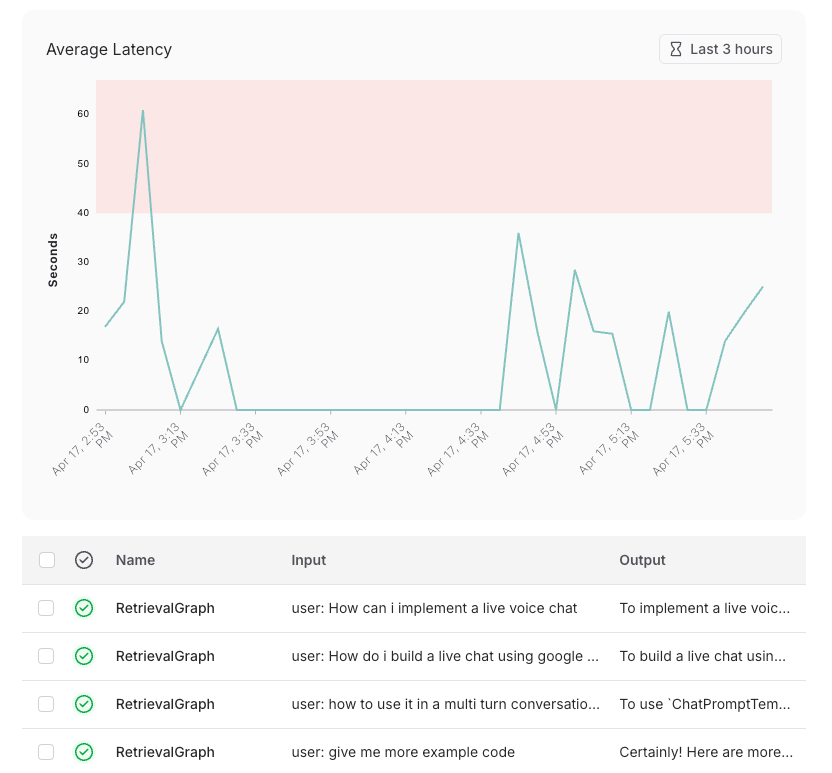 To configure this:
1. Save your alert
2. Find your saved alert in the alerts table and click it
3. Copy the displayed URL
4. Click "Edit Alert"
5. Replace the existing project URL with the copied alert preview URL
## Additional Resources
* [LangSmith Alerts Documentation](/langsmith/alerts)
* [Slack chat.postMessage API Documentation](https://api.slack.com/methods/chat.postMessage)
* [Slack Block Kit Builder](https://app.slack.com/block-kit-builder/)
***
[Edit the source of this page on GitHub.](https://github.com/langchain-ai/docs/edit/main/src/langsmith/alerts-webhook.mdx)
[Connect these docs programmatically](/use-these-docs) to Claude, VSCode, and more via MCP for real-time answers.
To configure this:
1. Save your alert
2. Find your saved alert in the alerts table and click it
3. Copy the displayed URL
4. Click "Edit Alert"
5. Replace the existing project URL with the copied alert preview URL
## Additional Resources
* [LangSmith Alerts Documentation](/langsmith/alerts)
* [Slack chat.postMessage API Documentation](https://api.slack.com/methods/chat.postMessage)
* [Slack Block Kit Builder](https://app.slack.com/block-kit-builder/)
***
[Edit the source of this page on GitHub.](https://github.com/langchain-ai/docs/edit/main/src/langsmith/alerts-webhook.mdx)
[Connect these docs programmatically](/use-these-docs) to Claude, VSCode, and more via MCP for real-time answers.